1. Start with the sample roster
Open the team generator. A guest browser with no saved roster starts with twelve fictional players. If you already have a roster, export it before making changes; you do not need to erase your work to follow the calculations below. Open Roster to inspect a player, then use the player detail panel to check the name, role and rating.
A rating is a planning estimate on the app's 1–5 scale, not a measured performance score. Use a consistent standard across the whole group. For a mixed practice, rate the players for the activity you intend to run, rather than comparing a specialist's best skill with another player's weakest one.
| Player | Role | Rating | Example team |
|---|---|---|---|
| Rossi | Setter | 4.2 | A |
| Bianchi | Outside hitter | 4.0 | A |
| Verdi | Middle blocker | 3.8 | A |
| Russo | Opposite | 4.5 | B |
| Ferrari | Outside hitter | 3.6 | A |
| Esposito | Libero | 3.9 | B |
| Colombo | Setter | 4.1 | B |
| Romano | Outside hitter | 3.7 | B |
| Ricci | Middle blocker | 4.0 | B |
| Marino | Opposite | 4.3 | A |
| Greco | Outside hitter | 3.5 | B |
| Conti | Libero | 3.8 | A |
The example includes liberos in the rating comparison. It is a team-building exercise, not an official starting lineup: for a regulation match, decide the starting six and libero replacements separately.
2. Generate, then check the numbers
Press Generate Teams. The app tries up to 100 candidate splits and keeps the one with the smallest gap between average ratings. It stops early if it finds an exact numerical balance. Because the candidates are shuffled, repeated presses can give different names on each side. The table above shows a valid split you can check yourself; it is not a promise that every press returns that split.
Team A: 4.2 + 4.0 + 3.8 + 3.6 + 4.3 + 3.8 = 23.7. Average: 23.7 ÷ 6 = 3.95.
Team B: 4.5 + 3.9 + 4.1 + 3.7 + 4.0 + 3.5 = 23.7. Average: 23.7 ÷ 6 = 3.95.
Read AVE and TOT beside each team name to compare average and total. A total alone can mislead you if there are different numbers of players. With an odd player count, one team has one extra player; consider how you will share playing time instead of treating the extra person as an automatic advantage.
3. Check roles before accepting the split
The generator balances ratings and player counts. It does not enforce one setter per team or a particular formation. In our manually checked example, each team has one setter, one middle blocker, one opposite, two outside hitters and one libero. Check your generated teams separately: two setters may end up together even when both averages are equal.
If a role is missing, drag players between teams and inspect the averages again. Prefer a playable team over a tiny rating difference. A useful practice check is: who sets the second ball, who covers reception, and who takes over when someone leaves the court? Decide those responsibilities before the first rally.
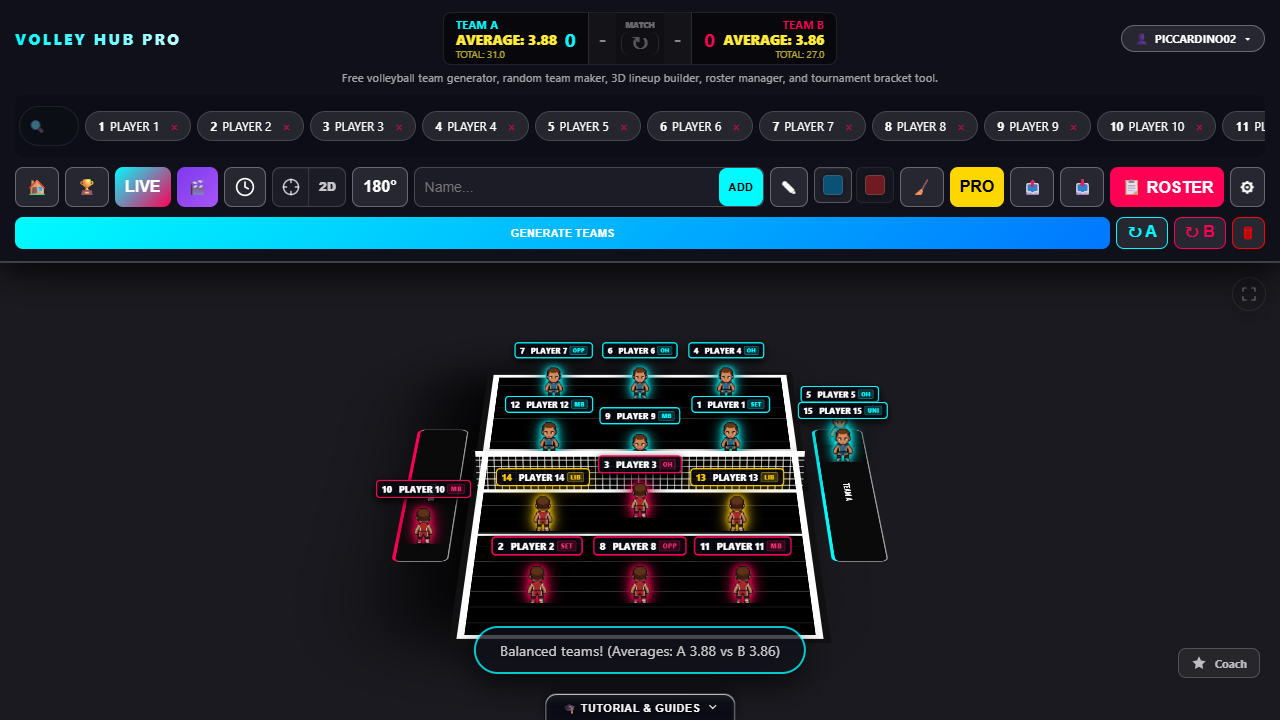
4. Separate rotation order from tactical movement
Use Rotate A and Rotate B to advance the displayed court positions. Switch to Top View to explain court zones, or use Draw to mark a movement. Clear removes the drawing; it is different from resetting the roster. Use the Coach button for the dedicated tactical view.
A rotation sequence and a defensive base position answer different questions. First explain who follows whom in the service order. Then explain where each player moves for the drill. The visualizer is a planning aid and does not certify a legal lineup or referee positional faults. Check the rules used by your competition in the rotation guide.
5. Make a four-team event practical
Open Tournament Manager, create or select a tournament and choose four teams for an elimination bracket. Team preparation in the bracket is separate from the individual player list in the generator. For a single-elimination example, call the teams North, South, East and West; leave double elimination off if you want two semifinals and one final.
In the calendar, set a court, start time and duration for each scheduled match. For one court, this is a workable planning example:
| Match | Start | Duration | Court |
|---|---|---|---|
| Semifinal 1 | 18:00 | 45 minutes | Court 1 |
| Semifinal 2 | 19:00 | 45 minutes | Court 1 |
| Final | 20:00 | 45 minutes | Court 1 |
Each slot leaves fifteen minutes before the next start. That buffer is your planning choice, not an automatic extension: a long match may still delay the final. You can schedule the final before its participants are known. The app warns about overlapping scheduled matches, but it cannot predict actual match length.
The date field accepts a pasted value such as 10/10/2026 18:00. Wait for valid date, time and duration fields to save. Export .ics for a calendar app or .pdf for a printout. Exports follow the active filters and include scheduled matches, so clear filters first if you want the whole schedule.
6. Save work before leaving the gym
As a guest, data belongs to the browser on this device. Export a roster or tournament backup before clearing storage or switching devices. A tournament JSON backup preserves the tournament data; a PDF or calendar file is for viewing the schedule and is not an editable backup.
When signed in, check synchronization feedback before relying on another device. If synchronization is pending, keep the local browser data and use the available retry action. When sharing screenshots or exported schedules, use only the player details that participants have agreed to share.
When the result looks wrong
- Missing player: check that the player is active in the roster.
- Equal averages, awkward teams: inspect roles and adjust the split manually.
- Missing match in an export: check the date/time and calendar filters.
- Blank roster on another device: check whether the original work was saved as a guest.
Report reproducible issues or corrections through Contact and corrections, with the page name and steps you followed.